Dashboard
The zc-workstation dashboard: what this machine has, what is missing, and plan and apply per target.
$ zc-workstation ui
zc-workstation ui on http://127.0.0.1:7780/ (this machine only; Ctrl-C to stop)
The config is read again on every request, so an edit shows on reload.
This machine
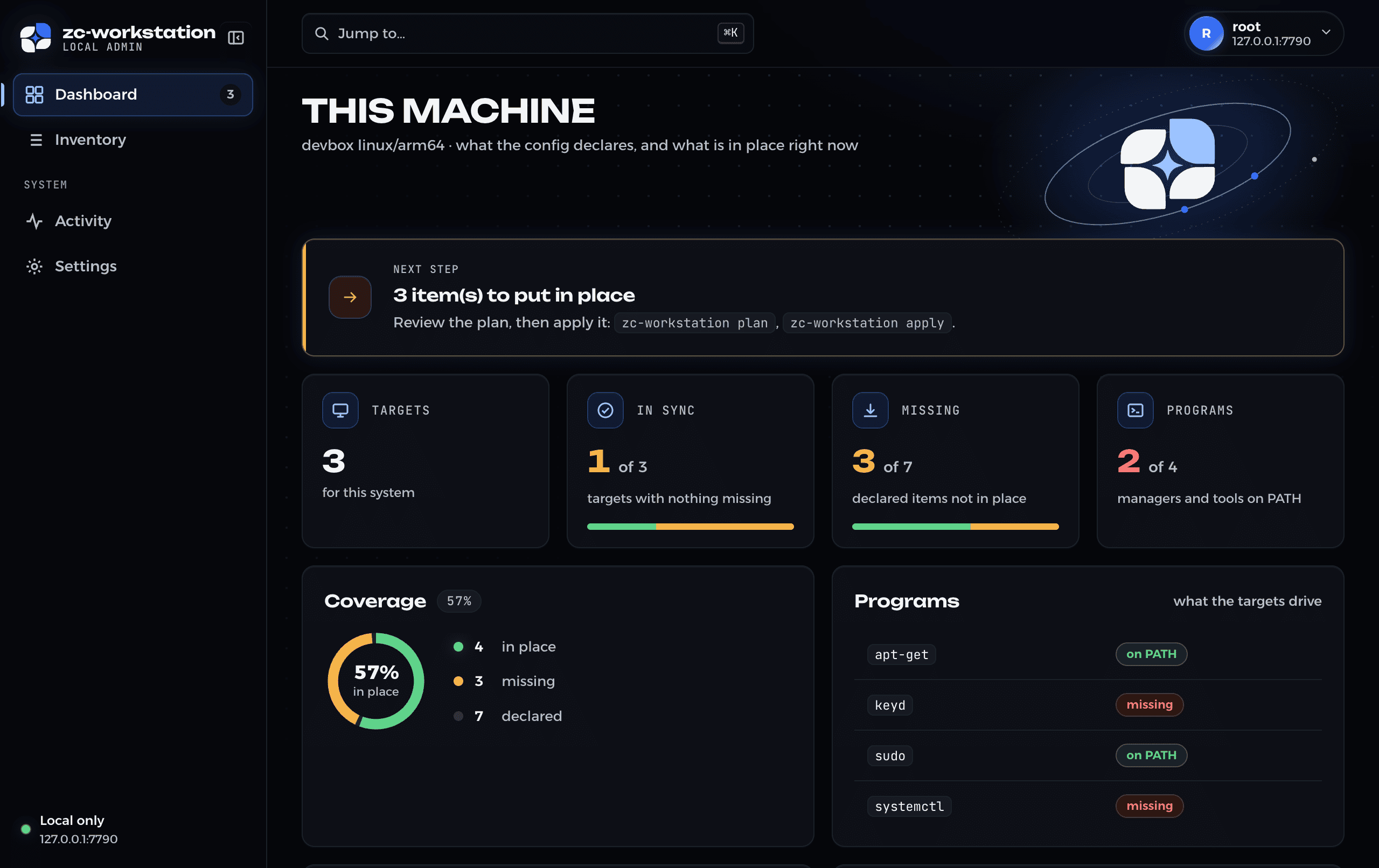
The front page reads every target and shows:
-
Next step: targets that cannot be read, else the number of items still to put in place, else all clear.
-
Targets: how many are for this system, and how many are skipped.
-
In sync: targets with nothing missing.
-
Missing: declared items not yet in place, across all targets.
-
Programs: the managers and tools the targets drive, such as
brew,chezmoiandmise, and whether each is onPATH. -
Coverage: the share of declared items in place.
-
Targets table: each target with its provider, its systems, a bar of what is in place, the live summary, and the result of the last plan made on the page.
Inventory
The Inventory page lists every package, app, dotfile and runtime the config declares, read from this machine:
-
Tools, Apps, Configured and Runtimes: how many of each are in place. Apps are casks, App Store apps and winget packages.
-
Configured apps: the programs the dotfiles configure, such as
ghosttyorzsh, with their file count. One with a file not in place shows amber. -
Everything: one row per declared item with its state, version, app and description, then the items installed but declared nowhere. A newer version shows next to the installed one. The chips above the table count what is not in place, outdated and not declared; each one filters the table. Search with
/, sort by column, and export CSV. The name links to the project’s homepage when the manager knows it.
Undeclared and outdated items do not count against the bars: a bar measures what the config declares.
zc-workstation list prints the same table.
One target
A target’s page shows its live state, the same item table for that target, and plans on demand. The plan lists every action, and the apply panel takes over from there.
Apply is deliberate
-
Apply needs a plan made on the page first.
-
You type the target’s name to confirm.
-
The page plans again before applying, and refuses if the result differs from what you saw.
-
A plan that deletes is not applied from the page. The page shows the terminal command instead, where the deletion prompt runs.
-
Installs that need
sudoor another prompt ask in the terminal that runszc-workstation ui. For apt and dnf targets, applying from a terminal is simpler.
Every plan and apply is recorded on the Activity page, in a JSON lines file
under the user data directory (-data changes it).
Look
The page wears the ZoolCoder identity: paper and ink in light, deep space and electric blue in dark, with Unbounded for titles, JetBrains Mono for labels and Alexandria for text. Pick light, dark or the system’s choice from the account menu. The fonts are served by the dashboard itself, under the SIL Open Font License, so the page loads nothing from the internet.
The same orbit art dresses the Mac itself, and the desktop provider sets it:
-
assets/wallpaperholds the wallpaper, dark and light, at 3024×1964 for a 14-inch MacBook Pro. The title sits top left, clear of the notch and the Dock.assets/wallpaper/render.shdraws it again, plus 5120×3200 for 5K displays. -
assets/screensaver/index.htmlis the screen saver: the orbits turn, the stars twinkle, and a clock shows the time and date. The scene drifts slowly so nothing stays in one place. In a browser, add?lightfor paper, or?stillfor no motion; the system’s reduced motion setting also stops it.assets/screensaver/build-saver.shbuilds and installs the saver that shows it.
Local only
The page has no login. It listens on loopback only, answers 403 to a foreign
Host header and to a cross-site POST, and caps request bodies.
Edit this page Last updated